
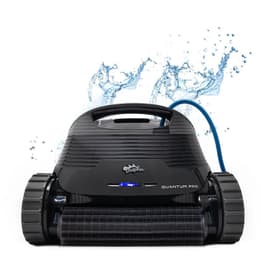
Dolphin Quantum
Best for: Best all-around inground pick
CoverageFloor, walls & waterline
Pool sizeUp to 50 ft
Warranty2 years
$1649
See this cleaner
Part of the Dolphin S-Series lineup · compare all 6 models

Adds Wi-Fi and a caddy to the S200 platform. Explorer E30 Wi-Fi is the closest online match; Explorer E50 adds Multi-Layer filtration.
Maytronics dealer price as of October 1, 2026.

These cleaners share the features that matter most—and you can order them now with free shipping.
Best for: Best all-around inground pick
CoverageFloor, walls & waterline
Pool sizeUp to 50 ft
Warranty2 years
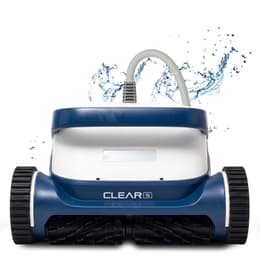
Best for: Premium clean without the UV price
CoverageFloor, walls & waterline
Pool sizeUp to 50 ft
Warranty3 years
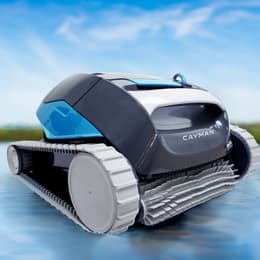
Best for: Best value wall-climber
CoverageFloor, walls & waterline
Pool sizeUp to 50 ft
Warranty2 years
Schedule cleanings, switch modes, and spot-steer from iOS or Android.
Includes Maytronics' wheeled caddy for neat poolside transport.
Lateral water jets grip walls and scrub tile scum lines clean.
Interchangeable mesh and pleated panels rinse from the top in seconds.
Prevents cord twists across 50-ft inground pools.
Sheds water quickly for an easier lift onto the deck.
The Dolphin S300 combines the S200 cleaning platform with Wi-Fi and a Universal Caddy. Pair the Explorer E30 Wi-Fi with a Universal Caddy for the closest configuration, choose the Explorer E50 for nested filtration, or the Dolphin M600 for 3-year coverage.
The Dolphin S300 is a corded robotic pool cleaner from Maytronics, rated for in-ground and above-ground pools up to 50 ft long. It cleans the floor, walls & waterline on a 2-hour default cycle, using 2 brushes, with a rated suction of 4,000 GPH.
Filtration is a fine filter kit with top access, and an ultra-fine filter kit is included in the box. It has a weekly timer, and it connects to the MyDolphin™ Plus app. The cable has an anti-tangle swivel. A caddy is included. The robot weighs 18.5 lb and carries a 2-year Maytronics warranty.
The S300 is always connected, giving you the power to control your pools clean from anywhere. Maytronics, on the Dolphin S300
| Maximum Pool Length | 50 ft |
|---|---|
| Cleaning Coverage | Floor, Walls and Waterline |
| Default Cycle Time | 2 hours |
| Warranty | 2 years |
| Delay Feature | No |
| Weekly Timer | Yes |
| Mobile Application | MyDolphin™ Plus |
| Caddy or Stand Included | Caddy |
| Anti Tangling Swivel | Yes |
| Additional Filter in the Box | Ultra-Fine Filter Kit |
| Filter Type | Fine Filter Kit |
| Filter Access | Top Access |
|---|---|
| Full Filter Indicator | No |
| Waterline Scrubbing | Yes |
| Enhanced Cleaning Cycles | No |
| Active Brush | Yes |
| Number of Brushes | 2 |
| Brush Type | Standard Brush |
| Suction Rate | 4,000 GPH |
| Automation Mode | Yes |
|---|
| Pool Shape | Rectangular, Round, Free Shape, Kidney |
|---|---|
| Pool Classification | In ground and Above Ground |
| Package Dimensions | 23.7x19.4x19.0 in |
|---|---|
| Robot Weight | 18.5 lb |
| Net Height | 11.7 in |
| Net Length | 17.4 in |
| Net Width | 15.8 in |
| Remote Control | No |
|---|
Specifications as published by Maytronics for product no. 99996221-USWI (UPC 724131499525).
Straight answers on parts, ownership, and the closest models you can order today.
The S300 adds myDolphin™ Plus Wi-Fi app control and includes the Universal Caddy over our Dolphin S200 ($999).
Our genuine Maytronics 120W Wi-Fi Power Supply (99956085-ASSYV4).
Maytronics' own fixes for the problems owners report most, followed by the symptom table from the user manual.
Maytronics MyDolphin™ Plus application, connected via the Cloud, allows you to control your Dolphin robot from anywhere, at any time, thanks to real-time connectivity.
Here is a quick video to make your first connection easy!
Compatibility
Wi-Fi Network Requirements
If your Wi-Fi® network's technical specifications do not allow this connection, you can also connect to your Dolphin robot via Bluetooth® only.
Getting started with the MyDolphin™ Plus App
For Android users: Please make sure that your GPS and location-based services are turned ON.
For iOS 13 users only: You must allow the application to use Bluetooth® and location-based services while the application is running.
Preparing your Dolphin to establish the connection
Connecting your Dolphin to your phone/tablet
First Bluetooth® Connection
Please verify that you have granted all permissions when signing up on the app (location / BLE / etc.) and that all conditions are met (Wi-Fi / Cellular / BLE).
Please make sure that the blue cable is properly connected to the PWS.
When trying to connect, does a picture of the robot come up?
If no robot is shown, please reach out to our Customer Care team here with a screenshot of the step you are stuck in.
You have now successfully paired your robot to the app!
You can now give your Dolphin a name, register its warranty, and enjoy the app's features.
Stuck on Loading screen: The connection process is divided into three stages. Percentages represent these stages. If the app is stuck on one of these percentages, this can indicate a specific issue.
First Stage – 0-10% / Sending WIFI info to the power supply (phone-power supply)
After the initial Bluetooth® connection, the app sends Wi-Fi details from the phone to the power supply. If it is stuck at this percentage, the connection was cut or not sent properly.
Close the app, reopen it, and try reconnecting, standing close to the power supply to ensure connection. Also verify that the Wi-Fi network’s name is correct and that there are no foreign letters or characters.
Second Stage – 10-50% / Power supply is connecting to the router
This stage is checking the Wi-Fi network requirements (2.4 GHz), this will take up to two minutes.
Verify that the network requirements are correct if stuck on this stage.
Third Stage – 50-90% / Power supply is connecting to cloud
If the connection fails here, it is because there is an issue with the cloud/connection to the cloud.
Reset the router.
The MyDolphin Plus app works with WPA/WPA2-Personal & WPA2/WPA3-Personal.
Note - It is not possible to purchase a Wi-Fi-compatible power supply and pair it with a non-Wi-Fi robot to use the MyDolphin Plus app.
Refer to the user manual to verify if your Dolphin model is compatible with the MyDolphinPlus app.
Still need assistance? Click the blue chat icon in the bottom-right corner of your screen to start a conversation with our AI agent — 'Phin'!
Click here to use our easy-to-use self-service tool to troubleshoot your robot and complete a warranty claim for repair or power supply replacement.
If the robot was purchased through a local dealer, please verify if they provide repair services.
If your Dolphin robotic pool cleaner starts the cycle but does not complete or stops shortly after, or the Power Supply shows a red light (this means there is an error with the robot), follow these troubleshooting steps to try and resolve the issue:
Note: Before turning the robot on, it must be submerged in at least three feet of water.
Does the Power Supply Unit turn off as soon as the robot stops? If so, the issue may originate in the Power Supply. Please click here and follow the relevant troubleshooting steps.
Click here to watch our Dolphin Tips video for step-by-step troubleshooting!
Click Accept to watch the video
Video: https://www.youtube.com/embed/IyST7U31228
If the Power Supply unit remains on, but the Dolphin stops the cleaning cycle early, then:
1. Disconnect the Power Supply Unit (click here)
Disconnect the Power Supply Unit from the outlet and remove the Dolphin robot from the pool.
2. Check the driving system (click here for steps)
Place the robot upside down, and try rotating the brushes by hand. Note: You should feel small resistance.
Check the tracks and brushes, and all the nooks and crannies for any obstructions or visible damage.
Click here to see how to clean the tracks.
3. Check the impeller and its surrounding parts (click here for steps)
Caution! Ensure the power supply remains unplugged.
If debris is trapped in the impeller, open it, remove the debris, and reassemble it.
Use a Phillips-head screwdriver; do not use a power drill.
Click here to see how to clean the impeller.
4. Check the PowerStream (Selected Models only) (click here for steps)
If your robot model has a Power Stream mobility system (located on top of the Impeller), please check the plastic cover around the motor unit and the grilles on the sides of your model for visible debris and remove the debris.
Want to talk to a real person? Our Customer Care Team is here for you—just give us a call at 1-888-365-7446 / 1-855-634-8572! The Customer Care hours are Monday-Friday 8:00 am-5:00 pm EST
Click here to watch our Dolphin Tips video for step-by-step troubleshooting!
Click Accept to watch the video
Video: https://www.youtube.com/embed/jaFdQ4mZunQ
Optimal Pool Conditions for Your Robot
The robot should be used in water temperatures of 6°C - 35°C for optimal results. A low pool temperature can significantly hinder the robot's ability to climb. The water temperature should be maintained at a level higher than 15°C.
Checking Chemical Levels
Next, verify that the pool chemicals are within the recommended range. If the pH levels are too high or too low, this can affect the robot's climbing ability.
Additionally, if your robot has a fast mode or "Floor Only" mode, (only for models compatible with the MyDolphin/MyDolphin™ Plus app or with the power supply unit) verify that these modes have not been set.
Inspecting the Filters
It is imperative to check the filters. If you are using the Ultra-Fine (paper) filter, it should appear white. If the filter is brown or green, clean it with a garden hose set to the highest pressure. If the filter does not return to a white state– it is likely due to be replaced.
For further details, please visit our Replacement Spare Parts page or Click here to find a local dealer near you.
If you are using the Ultra-Fine filters, operate the robot with the Net Filters instead. If the robot is able to climb, this serves as an indication that the Ultra-Fine filters require replacement.
Debris in the Impeller
Make sure there is no debris obstructing the impeller. For instructions on how to clean your impeller, click here.
Does your robot have an adjustable handle? (Click Here)
Make sure the handle is aligned diagonally to help the robot climb.
For slow waterline cleaning (covers less surface area, but cleans more intensively): Put one end of the handle in the second/third slot, and the other end of the handle in the second/third slot (pictured above on the left side)
For fast waterline cleaning (covers more surface area, but cleans less intensively): Put one end of the handle in the first slot, and the other end of the handle in the fourth slot (pictured above on the right side)
Sufficient Cable Length
Ensure the robot has sufficient cable to allow it to climb the wall – the cable can pull the robot back if there is not enough of it.
To determine if you have the appropriate amount of cable in the pool, measure the cable length that matches your pool's longest dimension.
It is important to remember not to use an excessive length of cable to avoid tangling issues.
Brush Type
It’s important to use the correct brush based on your Dolphin model, the surface type and slopes of your pool.
PVC brushes are standard and work well for most pool floors.
Combined brushes (PVC with foam climbing rings) help the robot climb and grip better—if your robot has climbing rings, don’t remove them! They’re essential for performance and should be replaced when worn.
Wonder Brush is the ideal choice for ultra-smooth or slippery surfaces like stainless steel or polished mosaic tile.
If your robot struggles to climb walls or stay attached to the pool surface, switching to a combined brush might help.
But hold up—contact our Customer Care Support first to make sure your model is compatible with that switch.
Does the issue still persist? Click here to use our easy-to-use self-service tool to send your robot in for a repair!
Click here to watch our official Dolphin Tips video!
Click Accept to watch the video
Video: https://www.youtube.com/embed/ntAasr51CGQ
If the robot is not cleaning the pool as it used to or is missing spots, we recommend verifying the following parameters.
Check that the chemical levels meet the following parameters:
It is essential to maintain these levels for the best cleaning results and to preserve the robot's longevity.
The weather, our body chemistry, and additional factors can affect the chemical levels in the pool, therefore we recommend checking the chemical levels regularly. Click here to shop our pool chemicals
Check that the water temperature is between 43° - 95° Fahrenheit.
If your robot struggles to climb, ensure the pool temperature is higher than 59°F, as low temperatures can make it difficult for the robot to climb.
If there is a specific area in your pool that the robot is missing, we recommend putting the robot in that area from the start of the cycle.
If the robot is getting stuck in the deep end of the pool, it may be possible to upgrade the back brush on your robot to a Combined Brush or Wonder Brush. Please contact us here to verify if this solution will be suitable for your robot model.
What kind of debris is in the pool?
Depending on the type of debris there is in the pool, will help determine which filter type is most suitable for use.
If the debris is fine debris, such as sand and dirt, we recommend using ultra-fine filters. If your robot model did not come with ultra-fine filters, they can be purchased separately. Click here to visit our Replacement Spare Parts page for more information.
If the debris is large debris such as tree foliage, we recommend using our fine (net) filters.
If the debris is sticky, algae-like debris, we recommend inquiring with your pool technician for further analysis and action.
If you complete a chemical shock, wait at least 24 hours after the treatment, before placing the robot back in the pool and verify that the chemical levels have returned to normal.
If there is a large amount of debris in the pool, we recommend running multiple cycles in a row and cleaning the filter after each cycle.
How does the robot filter look? Is it quite full? Could it be clogged?
It is important to clean the filter after each cleaning cycle to prevent the filters from getting clogged. Click here to see how to clean the filters.
We recommend using fine filter panels for large debris such as leaves and bugs, and ultra-fine filter panels for tiny debris such as dust, dirt, and sand.
Verify that the filters are not clogged and that the robot is free from debris, as clogged filters can interfere with the suction process and prevent the robot from picking up debris effectively.
If the filters no longer wash white or the debris is stuck on the filter, we recommend replacing the filter panels. If you wish to purchase replacement filters, click here to visit our Spare Parts page or reach out to your local Dolphin dealer.
Let's make sure there's no debris hiding elsewhere in the robot.
Impeller
Click here to see how to clean the impeller.
Check your filter's non-return valve–the opening at the bottom of the filter–or the little black pouch attached to it and make sure it is free of debris.
Rapid drain flap
If applicable to your robot, make sure that the rubber rapid drain flap on the back of the robot is securely installed.
Brushes
Please ensure that the PVC brushes are fully intact, with no tears, or external damage. If they show signs of wear and tear, we recommend replacing the PVC brushes. Click here to visit our Replacement Spare Parts page for more information.
If the brush has white climbing rings, they should be white in color, and not flattened or damaged. If they show signs of wear and tear, we recommend replacing the climbing rings. Click here to visit our Replacement Spare Parts page for more information.
Tracks
Please ensure that the tracks are tightly fitted on the robot, without damage or discoloration.
If the tracks are discolored or loose, we recommend replacing the tracks and verifying that the pool chemical levels are within our recommended usage range. Click here to visit our Replacement Spare Parts page for more information.
Why isn't the robot cleaning the debris on the steps/ledge/tanning shelf?
It is important to note that our robots are not designed to clean steps, stairs, or ledges. We recommend brushing the debris from the steps onto to the floor of the pool so that the robot can clean the debris.
Our robots require submersion in at least 35” of water to function properly.
If there is debris in the seam of a steep slope, we recommend brushing the debris from the seam onto a flat surface so that the robot will be able to reach the debris.
Important tips!
Make sure to put enough blue cable in the water to allow the cleaner to reach all areas in the pool.
It is important to make sure that the robot has a cable long enough to allow full coverage of your pool. You can measure the distance between the two farthest corners of the pool to get an understanding of the amount of blue cable needed. If your pool's length is over 30', make sure to use a robot with a cable length of 60'.
It is important to make sure that your robot's brush type is compatible with your pool coating.
If your pool has a PVC, concrete tile, concrete, or gunite coating, it is most compatible with a robot that comes with a PVC brush.
If your pool has a PVC, rough ceramics, fiberglass, or mosaic coating, it is most compatible with a robot that comes with a Combined brush (nylon should be removed before use).
If your pool has a smooth ceramic, stainless steel, or glass coating, it is most compatible with a robot that comes with a Wonder brush.
If you are experiencing a different issue, click here to visit the rest of our Troubleshooting FAQ.
Still need assistance? Click the blue chat icon in the bottom-right corner of your screen to start a conversation with our AI agent — 'Phin'!
Click here to watch our Dolphin Tips video about filter maintenance!
Click Accept to watch the video
Video: https://www.youtube.com/embed/g2eB2QruRcA
To take the best care of your filters, we recommend cleaning the filters after each cycle to make sure they last longer.
Click below to watch a video that shows how to clean your filters: Robot with basket filters
Video: https://www.youtube.com/embed/RNguomSCTTs
Video: https://www.youtube.com/embed/H-Sfmk7vLpE
Robot with two cartridge filters
Video: https://www.youtube.com/embed/6QXuSi9tM_o
Special Considerations for Ultra-Fine Filters It is important to note that if you are using ultra-fine filters, even if they appear to be clean, they may still be obstructed by tiny particles such as sand and dust. A useful tip is to observe the color of the filter:
Click here to order replacement filter parts
Click here to find a local dealer near you to purchase new filters.
Click here to see how to replace your filter panels.
Once your filters are clean, your robot will be able to clean more effectively.
Washing Bag Filters and Cartridge Panels For bag filters, they can be washed in a washing machine at a temperature of 30 degrees Celsius, and it is advisable to let them air dry.
As for the filter cartridge panels, these can be cleaned in a dishwasher set to 30 degrees Celsius.
Click here to read more about the differences in the filter types.
Still need assistance? Click the blue chat icon in the bottom-right corner of your screen to start a conversation with our AI agent — 'Phin'!
Click here to use our easy-to-use self-service tool to troubleshoot your robot and issue a warranty claim for a repair or power supply!
If the robot was purchased through a local dealer, please verify if they provide repair services.
Want to talk to a real person? Our Customer Care Team is here for you—just give us a call at 1-888-365-7446 / 1-855-634-8572! Between Monday-Friday 8:00 am-5:00 pm EST
Click here to watch our Dolphin Tips video for step-by-step troubleshooting!
Click Accept to watch the video
Video: https://www.youtube.com/embed/wN6PxMZrp6s
If your Power Supply stops working, trips the GFCI outlet, or does not turn on at all, follow these troubleshooting steps to help diagnose and resolve the issue:
Step 1: Check the Power Source
Step 2: Inspect the Blue and Black Cables
Step 3: Determine the Source of the Issue
Now let's identify whether the problem lies with the Dolphin's Motor, the Cable(s), or the Power Supply itself. To do this:
Step 4: Does the Power Supply Unit turn on and stay on?
After following the previous steps, does the Power Supply Unit turn on and stay on?
Click here, if it does!
If the Power Supply turns and stays on, the issue is not with the Power Supply. There may be an issue with the Dolphin's cable or motor unit.
An authorized Dolphin technician should analyze and repair the robot. Click here to submit a repair request or contact your local dealer (if you purchased the robot from a local dealer).
Click here, if the power supply doesn't turn on, or turns off immediately, or has stopped working altogether
It seems there is an issue with the Power Supply. Click here to create a warranty claim for a replacement power supply with our easy-to-use self-service tool!
Contact your local dealer if you purchased the robot from a local dealer for a replacement Power Supply Unit.
Note - We cannot complete Power Supply repairs.
Is a specific feature on your power supply not working? Click here to verify in the user manual which features are included with your robot model.
Power supply not connecting to Wi-Fi? Click here to read more.
| Symptom | Possible reason | What to do |
|---|---|---|
| Power-supply or switch is not working. | • No voltage in the power socket in the wall. • The power supply is not switched ON. • Black power cable is not connected into the power supply inlet. | • Check that there is voltage in the power socket in the wall. • Check that the power supply is plugged in and turned ON. • Check that the power cable is securely connected all the way into the power supply. • Turn the power supply OFF. Wait 30 seconds, then turn it back ON. |
| Pool Cleaner does not move / Red light on the power supply. | • The blue floating cable is not connected into the power supply. • An obstacle is blocking the impeller, tracks or wheels. • Pool cleaner is out of water. | • Check that the blue floating cable is securely connected into the power supply. • Unplug the power supply. Open the impeller cover and check that nothing is trapped in the impeller. • Verify that nothing is blocking the tracks or wheels. |
| Pool Cleaner is moving in circles. | • Clogged filter basket. • Debris stuck in the impeller house or impeller cover. • Power supply incorrectly positioned. • Algae or pool water is out of spec. | • Clean the filter basket. • Remove debris stuck in the impeller house or impeller cover • Place power supply in position so that the Pool Cleaner can freely reach all the pool area. • Correct pool and water conditions. |
| Pool Cleaner does not turn or moves in one direction only. | • Debris stuck in the impeller house or impeller cover. | • Remove debris stuck in the impeller house or impeller cover. |
| Pool Cleaner moves but does not clean the pool. | • Clogged filter basket. • Debris stuck in the impeller house or impeller cover. | • Clean the filter basket. • Remove debris stuck in the impeller house or impeller cover. |
| Pool Cleaner cleans only part of the pool. | • Power supply incorrectly positioned. • Not enough floating cable is released for the correct operation of the Robotic Pool Cleaner. | • Place the power supply in a position that enables the Pool Cleaner to freely reach the entire pool area. • Check there is enough slack in the blue floating cable for the Pool Cleaner to reach all of the pool. Clean the filter basket. |
| Blue floating cable has kinks. | • Clogged filter basket. • Debris stuck in the impeller-house or impeller-cover. | • Clean the filter basket. • Remove debris stuck in the impeller house or impeller cover. • To remove the kinks, stretch the floating cable out completely and let it sit for at least a day in the sun. |
| Pool Cleaner does not climb the walls. | • Clogged filter basket. • Algae on walls. • Unsuitable pH level. • Debris stuck in the impeller-house or impeller-cover. | • Clean the filter basket. • Check the level of chemicals in the water. Improper levels may allow the growth of algae, making the walls slippery. • Adjust chemical levels and scrub walls. • Remove debris stuck in the impeller-house or impeller-cover. |
From the Dolphin S300 user manual's troubleshooting table.
19 Maytronics parts fit the Dolphin S300; the most common 12 are here. Part numbers are Maytronics'.
58984402LF61300601-R199831221-R199831521-R29991457-ASSY9991457-R19991463-R49991467-R49991481-ASSY9991481-R19991496-ASSY9991794-R1This model next to the three ProLine™, Max-Series™ and Clear™ robots closest to its price. Use the dropdowns to put any robot in a column: every Dolphin line, the Clear™ Series, and the other brands we carry.
| Model |
You're viewing
$1499
View details
|
Top pick
 $1079
Buy now
|
Top pick
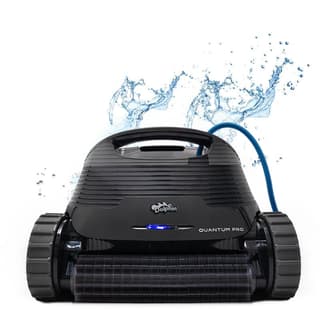 $1649
Buy now
|
Top pick
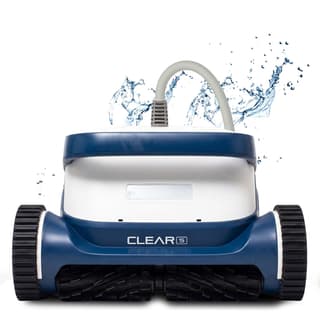 $1749
Buy now
|
|---|---|---|---|---|
| Price | $1499 | $1079 | $1649 | $1749 |
| Power | Corded | Corded (low-voltage) | Corded (low-voltage) | Corded (59-ft swivel cable) |
| Pool size | In-ground and above-ground up to 50 ft | Up to 50 ft | Up to 50 ft | Up to 50 ft |
| Coverage | Floor, walls & waterline | Floor, walls & waterline | Floor, walls & waterline | Floor, walls & waterline |
| Control | MyDolphin™ Plus app | Weekly timer (power supply) | Weekly timer (power supply) | CLEAR app (Wi-Fi) |
| Filtration | Fine Filter Kit + Ultra-Fine Filter Kit | MaxBin™ top-load basket (NanoFilter™-ready) | XXL MaxBin™ top-load + NanoFilters™ | UltraFilter™ (1μm / 180μm) |
| Cycle / runtime | 2 hours | 2 hours | 2 hours | — |
| Warranty | 2 years | 2 years | 2 years | 3 years |
| Owner rating | — | — | — | — |
| Best for | In-ground and above-ground pools up to 50 ft, floor, walls & waterline | Best value wall-climber | Best all-around inground pick | Premium clean without the UV price |
Prices are current as of our latest check. Every column links to that model's own page.
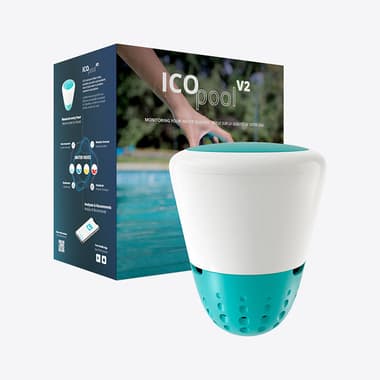
ICO tests your water every hour and tells you exactly what to add—before cloudy water or algae ruins the weekend.
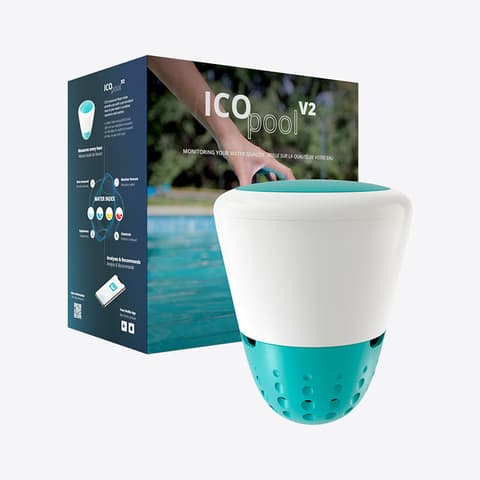
Hourly water readings and exact dosing help—without another subscription.